SETAF2018 Downloads
Download SETAF2018 installation packages, official documentation, and reference projects securely via this portal.
🛡️
Our files are digitally signed with Microsoft Azure Trusted Signing. If you receive browser warnings, you can proceed by selecting 'Keep' or 'Run anyway'
LICENSE MANAGEMENT
SETAF2018 Software Activation
You can activate your SETAF2018 software via LicenseManager.
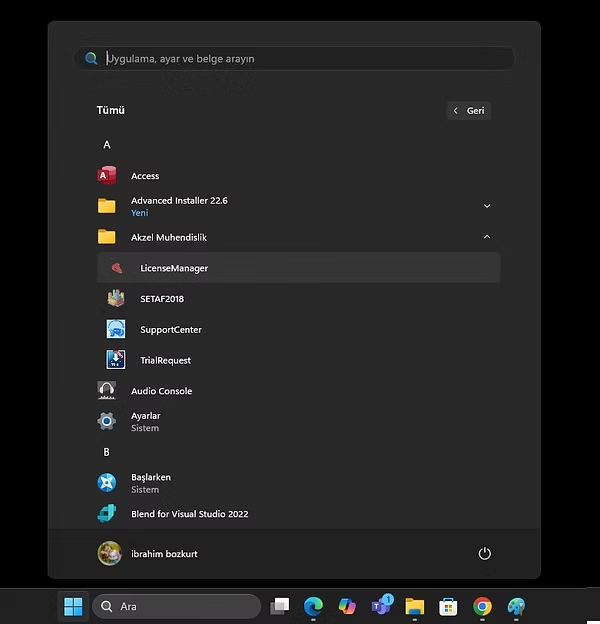
After installing the software on your Windows machine by running the SETAF2018 installation file, the LicenseManager application is accessed as follows:
Start Menu → Akzel Mühendislik → LicenseManager
Method 1 (Recommended Method): Automatic Activation via SETAFAccount
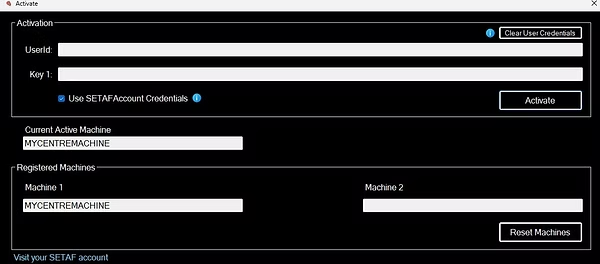
- Open the LicenseManager application.
- The "Use SETAFAccount Credentials" checkbox should be selected (it is selected by default).
- Leave the UserId and Key1 fields blank.
- Click the "Activate" button.
- At this stage, you will be asked for your username and password for your SETAFAccount.
- Log in by entering your username and password.
- After successful login, the system will:
- Automatically retrieve your UserId and Activation Key information from your SETAFAccount,
- Perform the activation process.
- After successful activation:
- Your machine name will be displayed in the "Current Active Machine" field.
- This machine will be added to the "Registered Machines" list.
Method 2: Manual Activation
- Uncheck the "Use SETAFAccount Credentials" checkbox.
- Enter the following information defined in your SETAF account by copying and pasting into the relevant fields:
- UserId and
- Activation Key.
- Click the "Activate" button.
- After successful activation:
- Your machine name will be displayed in the "Current Active Machine" field.
- This machine will be added to the "Registered Machines" list.
Note:
- One license allows activation on a maximum of 2 different machines.
- To register a new machine, you can reset registered machines using the "Reset Machines" button if necessary.
- Additionally, you can reset Registered Machines information via SETAFAccount (you can perform a Reset by accessing your own account).
- The program cannot remain activated and run on two different machines simultaneously. It must be actively run on only one machine.
- If you wish to run it on another machine, simply perform the activation process on that machine. The system will automatically register the new machine as the Current Active Machine and deactivate the previous machine's activation.
- To run on multiple machines simultaneously, additional licenses must be purchased.
- Please contact us for such needs.
TRIAL VERSION
Trial Version Activation
To test the software, you can activate your trial license by following the steps below.
1. Software Installation
- Download the "Setaf Setup" file to your computer by clicking the "Download" menu in the top menu.
- Complete the installation by running the downloaded setup file.
2. Trial License Request
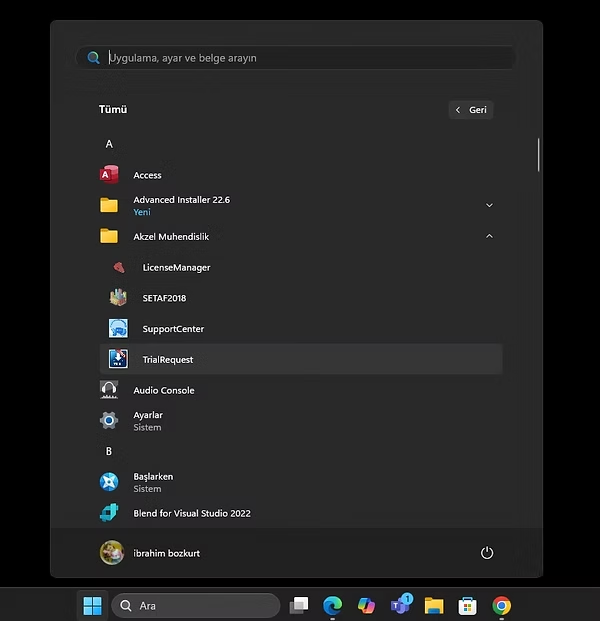
- After installation is complete, open the Start Menu > Akzel Mühendislik folder on your computer.
- Run the TrialRequest program.
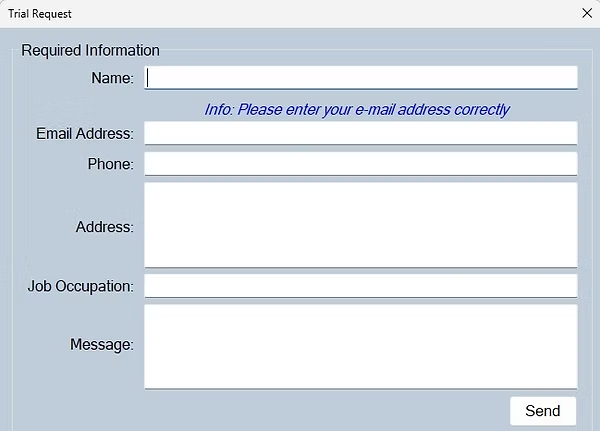
- Fill in all information completely and accurately in the form that opens.
Note: Ensure your email address is correct. Your license information will be sent to this address.
- After filling out the form, click the "Send" button.
- If you see the message "Your request has been forwarded to the technical team," the process has been completed successfully.
3. Software Activation
- After evaluating your application, the technical team will send your User ID and Activation Key to your email address.
- Open the LicenseManager program located in the same folder.
- Uncheck the "Use SETAFAccount Credentials" option.
- Enter the User ID and Activation Key sent to you into the respective fields.
- You can activate the software by pressing the "Activate" button.